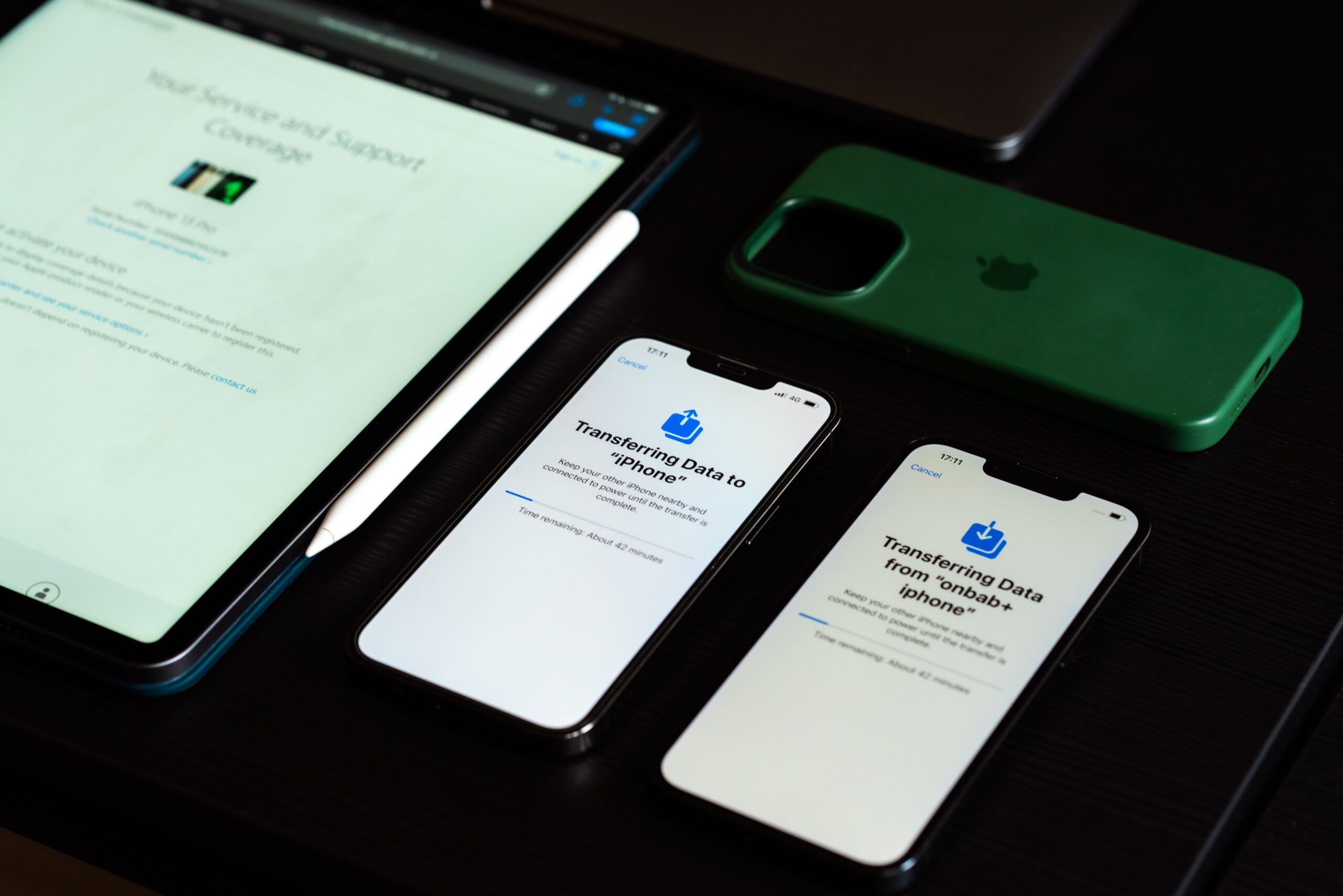
The best way to transfer data from an Android to a new iPhone is usually Apple’s Move to iOS app during the iPhone setup process. It is the official method, it is free, and it can move core data such as contacts, messages, photos, calendars, and some other content in one pass.
That said, Move to iOS is not perfect for every situation. It works best when your iPhone is brand new or has been erased and reset. If you already finished setup, or if you only need a few files, manual transfer methods can be faster and less disruptive.
This guide breaks down when to use Move to iOS, what it can and cannot transfer, how to avoid the most common problems, and what to do with apps, WhatsApp, and cloud data after the switch.
Quick answer: the best method for most people
If your new iPhone is still on the Apps & Data screen, choose Move Data from Android and use Apple’s Move to iOS app on your Android phone. Your iPhone will show a code, and in some cases a QR code, that links the two devices so the transfer can begin.
This is the cleanest option because it is built into the initial iPhone setup flow. It is designed to bring over the data most people care about first, including photos, contacts, calendars, call history, and messages. Apple’s setup flow also supports transferring files over a private Wi-Fi connection created between the devices, which is why keeping both phones nearby matters.
If your iPhone is already set up and you do not want to factory reset it, use a manual approach instead. That usually means signing into Google services on the iPhone for mail, contacts, calendars, and cloud photos, then moving local files separately. If privacy is part of your decision, this is also where it helps to understand how Android user data protections and account sync choices affect what stays in Google’s ecosystem.
What Move to iOS actually transfers
Move to iOS is best for the basics. Based on Apple’s setup flow and consistent migration support pages, it can transfer common personal data types from Android to iPhone, including:
- Contacts
- Calendar data
- Photos and videos
- SMS and message history supported by the tool
- Call history
- Web bookmarks
- Some accessibility and display settings
It can also help bring your Google account information onto the iPhone, which makes it easier to reconnect services like Gmail, Google Calendar, and Google Photos once setup is complete. Apple also notes that free apps available on both Google Play and the App Store can be suggested for download on the iPhone, but they are not copied over with their Android data intact.
What it does not reliably transfer is just as important. Android apps do not move over as working iPhone apps. Paid app licenses and in-app purchases do not cross from Google Play to the App Store. You will need to download iPhone versions manually and, in some cases, pay again if the developer does not offer cross-platform access.
When Move to iOS is the wrong choice
Move to iOS is the best answer for the target keyword, but not for every real-world case.
Skip it if your iPhone is already fully set up and you do not want to erase it. The official transfer process is tied to the setup stage, so using it later usually means resetting the iPhone back to factory settings first. That is a big tradeoff if you have already signed in, organized apps, or added new photos and messages on the iPhone.
It is also not the best fit if you only need to move a small set of files, such as a few documents, a photo folder, or cloud-based calendars. In those cases, direct sign-in through Google services or manual file copy methods are usually faster.
You may also want to skip a full migration if your Android phone is carrying a lot of old clutter. Large downloads, duplicate media, and unused app data can turn a simple setup into a long wait with no real benefit. The same basic logic shows up in other data-heavy workflows, including articles on mobile data autofill and stored account details, where cleaning up what you keep often matters more than moving everything.
How to transfer data from Android to iPhone step by step
- Prepare both phones. Charge both devices and connect them to Wi-Fi. Make sure you can unlock the Android phone with its PIN, password, or pattern. Turn off cellular data on Android if the setup keeps jumping networks.
- Start the new iPhone setup. On the iPhone, continue until you reach the Apps & Data screen, then tap Move Data from Android.
- Install Move to iOS on Android. Download Move to iOS from the Google Play Store if it is not already installed. Recent Android versions supported by Google Play generally run it without issue, but very old phones can be less predictable.
- Pair the devices. On the iPhone, tap Continue. A six-digit or 10-digit code appears. Enter that code on the Android phone, or scan the QR code if your setup flow offers it.
- Select what to move. On Android, choose the data categories you want to transfer, such as photos, contacts, calendars, messages, and bookmarks.
- Wait for the transfer to finish. Keep both devices nearby and powered on until the process completes. Transfer time varies with the amount of data. Light transfers can finish in around 15 to 30 minutes, while large photo libraries or message histories can take much longer.
- Finish setup on iPhone. After the transfer, complete the remaining iPhone setup steps, sign in with your Apple Account, and reinstall any apps you need from the App Store.
If the transfer stalls, leave both devices alone for a while before canceling. Large media libraries can take longer than expected, especially over Wi-Fi. Some users report that transfers appear frozen when the progress bar barely moves, then complete normally after a long pause. Complaints usually center on restarts, dropped connections, and photo-heavy moves taking far longer than expected.
What to do if your iPhone is already set up
If you missed the setup window, you have two realistic options.
The first is to erase the iPhone and start again so you can use Move to iOS. This makes sense if the phone is still new and you have not put much on it yet.
The second is to move data manually. For many people, this is the better choice.
Use your Google account on iPhone
Sign into Gmail, Google Contacts, and Google Calendar on the iPhone. This is the easiest way to recover mail, calendar events, and synced contacts without a full migration. If your photos already live in Google Photos, install the iPhone app and let the library sync there instead of trying to copy everything locally.
This route also keeps your data where it already works best. If you are deep into Google services, forcing everything into Apple’s default apps can create extra cleanup later.
Move media files manually
For music, videos, and local photo folders that are not already in the cloud, use a computer as the middle step if needed. This is slower than Move to iOS, but it avoids wiping the iPhone.
Manual transfer is also the safer route when you want to move only a small set of files and keep the rest of the iPhone untouched. That can be the better call if you are also reviewing stored passwords, wallet details, or saved form data before switching devices.
How long the transfer takes
There is no fixed transfer time because the biggest variable is how much data you are moving. Small transfers can finish in under half an hour. Very large transfers, especially those with many photos, videos, or long message histories, can take several hours.
A practical rule is simple: the more local media stored on the Android phone, the longer you should expect the migration to run. If your Android device has more than 10 GB of data selected for transfer, plan for extra time and keep both phones plugged in.
Storage speed matters too. A newer iPhone with faster internal storage can finish imports faster than an older device, while a budget Android phone with slower flash storage can bottleneck the process before Wi-Fi does.
WhatsApp, apps, and other tricky categories
WhatsApp is often the deal-breaker for switchers. Support for WhatsApp migration has improved, but it still depends on specific conditions. In general, the official migration path works best when you use Move to iOS during setup and keep the same phone number. If WhatsApp history matters to you, verify the latest requirements inside WhatsApp and Apple’s setup screens before you begin.
Apps do not transfer across platforms in the way people hope. Your Android app list may help you find iPhone equivalents, but the apps themselves are not copied over as working iOS installs. Paid Android apps may need to be purchased again in the App Store.
Passwords and passkeys are another category to check manually. If you use Google Password Manager, a third-party password manager, or browser-based saved logins, make sure you know where those credentials live before erasing or retiring the Android phone. This is also a good time to review any sensitive saved information, especially if your old phone contains work accounts or tracked activity similar to the concerns raised in pieces about sensitive data exposure from tracking systems.
Move to iOS vs manual transfer
| Method | Best for | Main advantage | Main limitation |
|---|---|---|---|
| Move to iOS | New or reset iPhone | Moves core data in one guided setup flow | Usually requires the iPhone to be at setup stage |
| Google account sync | Mail, contacts, calendars, cloud photos | Fast and does not require a reset | Does not move text messages or app data directly |
| Manual file copy | Small media or document transfers | Good for selective moves after setup | Slower and more hands-on |
If you want the shortest, least confusing path and your iPhone is still new, Move to iOS wins. If your iPhone is already set up, Google account sync plus selective manual transfer is usually the better compromise.
That split matters because the “best” method depends less on brand loyalty and more on timing. Before setup, the official tool is usually faster. After setup, manual control is usually less painful.
What to check after the transfer
After setup, open Contacts, Photos, Messages, and Calendar on the iPhone before you wipe or trade in the Android phone. Confirm that the important data actually arrived.
Then reinstall the apps you use most from the App Store and sign in one by one. Pay special attention to banking apps, authenticator apps, and any service with two-factor authentication. These often need separate device re-approval.
If you rely on Google services, install Gmail, Google Photos, Google Drive, and Google Calendar on the iPhone instead of trying to force everything into Apple’s apps. The better choice is the one that matches where your data already lives.
Finally, do not factory reset or trade in the Android phone until you have checked photos, message threads, notes, and login access for the apps you actually use every day.