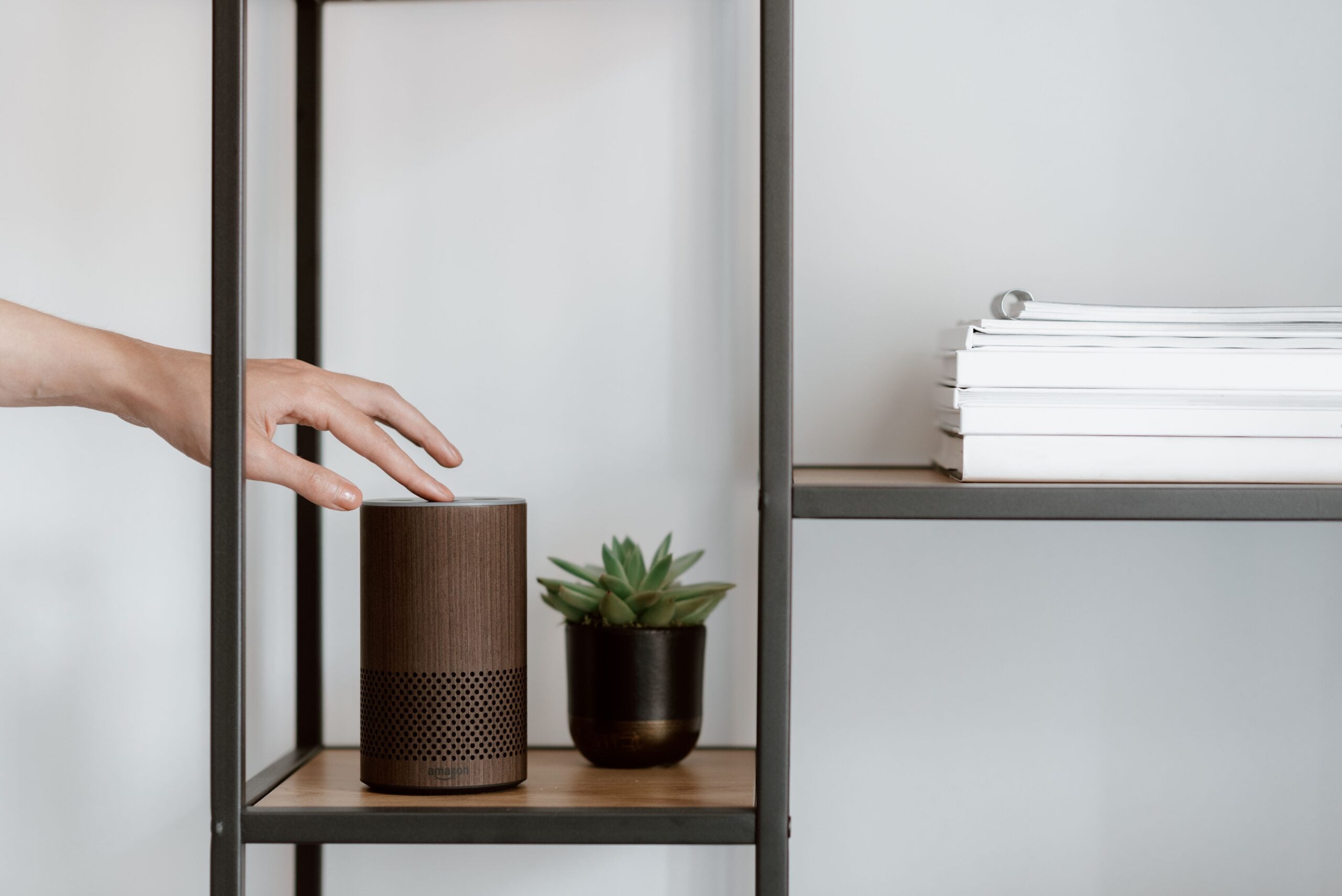
We all know the basic Alexa routine. Play a song, pause it, turn it down because somebody has decided 7 a.m. is concert time. Useful, sure, but it barely scratches the surface of what Alexa can do with media.
Alexa’s deeper playback controls cover repeat modes, multi-room listening, live TV navigation, audiobooks, radio, and moving a stream between compatible screens. A few are genuinely handy. A few depend on Alexa+, Prime Video, or the devices and services we have connected, so the fine print matters, especially now that Amazon keeps folding more generative AI features into Alexa while broader voice assistant roadmaps keep shifting alongside newer AI agent rollouts in tech, a pattern we are already seeing elsewhere in enterprise products like new AI agents announced for broader availability.
1. Restart, repeat, shuffle, loop, and tune the sound
For music, we can ask Alexa to start the current song again, put a track on repeat, shuffle playback, or loop an album or playlist. Those are small controls, but they remove the familiar phone-picking-up ritual when we just want an album to keep going. On Amazon Music, repeat, shuffle, and queue controls have stayed among the more reliable cross-device voice actions, while exact behavior can still vary a bit on third-party services.
Alexa can also adjust compatible speaker equalizer settings by voice. Requests to reduce treble or add bass offer a quick way to change the balance without digging through an app. It will not turn a small smart speaker into a full hi-fi rig, obviously, but it can make a noticeable difference for a bright recording or bass-light podcast. On most Echo speakers, those EQ adjustments apply as bass, midrange, and treble changes rather than giving us the kind of fully granular tuning we would expect from dedicated audio gear.
TV and movie playback gets similar basics. We can rewind, fast-forward, or tell Alexa to start a program over. An alarm can also be set to wake us with a chosen song or playlist, assuming the selected music service is linked and available. That last bit matters more than it sounds, because unsupported services usually fall back to a default sound instead of politely reading our minds.
2. Send music to the rooms where people actually are
Multi-room playback is where voice control starts feeling less like a novelty. On compatible speakers configured in the same Alexa ecosystem, we can name the rooms that should play music, or tell Alexa to play throughout the home while excluding a particular room. In practice, this works best on Echo, Echo Dot, Echo Show, and other supported Alexa speakers grouped inside the app under the same Wi-Fi setup.
That is practical for a party, cleaning day, or simply moving between the kitchen and living room without carrying a speaker around like we are preparing for a very low-budget touring schedule.
The ability to issue more flexible requests, such as playing everywhere except a specified room or stopping everywhere except one room, is presented as an Alexa+ feature. We should check the subscription and device support in the Alexa app before building our whole routine around those commands. This is the kind of feature split that makes voice platforms useful and slightly annoying at the same time.
3. Set the music service you actually use as the default
A common frustration is asking for a song and getting results from a service we do not normally use. We can avoid that in two ways. The quick option is to say the service name in every request, such as asking Alexa to play a playlist on Spotify.
The better long-term fix is linking the preferred service and making it the default in the Alexa app. In the app, go to Settings, then Music & More, and select default providers for music requests. Once that is set, commands for songs, artists, albums, genres, and playlists should stop needing the extra service name. If more than one service is linked, default selection becomes the difference between a clean one-step request and Alexa confidently choosing the wrong app like it pays rent there.
It is a small setup task that pays off every time we ask for music. Nobody needs an extra six words in a voice command that gets used daily.
4. Use Alexa to reach live TV and the channel guide
For supported live-TV apps, Alexa can open live programming or take us straight to a channel guide. Commands such as “go to live” and “go to channel guide” can save a few remote-control steps when we want to browse rather than hunt through menus.
We can also request a channel by name or number, depending on the service. The supported app mix includes services such as Pluto TV, Sling TV, Philo, and DirecTV, while some sports-focused apps can also respond through their live-TV sections. On Fire TV devices, these commands tend to work best when the app already supports Alexa transport and navigation hooks, which is why one service may obey perfectly while another suddenly acts like we asked it to solve calculus.
Compatibility is the important caveat here. A request can only work if the relevant TV device, app, account, and channel access are in place. Voice control cannot conjure a subscription we do not have, sadly.
5. Move a movie or show to another compatible display
Alexa can transfer an active video stream from one compatible screen to another. If we start watching on a kitchen display while cooking, we can ask Alexa to move the program to a bedroom or living-room TV when it is time to sit down.
The intended behavior is simple: Alexa turns on the destination display, moves playback, and retains the position in the movie or episode. Pair that with a sleep timer and it becomes a useful late-night feature, especially for anybody who has ever fallen asleep with the remote wedged somewhere beyond human reach. In the setups where it works well, this feels surprisingly close to the handoff convenience people expect from larger ecosystem products, just with more device-by-device caveats than any of us would prefer.
As with all cross-device features, the displays need to be compatible and connected to the same Alexa setup. Fire TV, Echo Show, and some Alexa-enabled televisions are the usual starting point.
6. Find a Prime Video scene by describing it
Alexa+ adds a more ambitious Prime Video control: searching for a scene using a description. We can ask for a recognizable moment, such as the spoon-bending scene from The Matrix, rather than manually scrubbing through a film timeline.
Descriptions can also use an actor, character, or quote to narrow the request. The feature is limited to supported Prime Video titles, and Amazon says it works across thousands of titles. That does not mean every supported title is included with every Prime membership, since some films and shows may still require a rental or purchase. It is a good example of where AI search sounds magical in the demo and then runs directly into licensing, catalog availability, and service boundaries in the real world.
This one is a fun trick, but it is also genuinely useful. Anyone who has tried to find a single scene using a streaming-app scrub bar knows why.
7. Ask for music by mood or by lyrics
When we know what feeling we want but not the exact artist, Alexa can handle theme-based requests. Asking for chill reggae, for example, prompts the default music service to select fitting music. Recommendation quality still depends heavily on the service doing the actual music lookup, so results can feel sharper on one platform than another.
Lyric-based requests are another escape hatch for the dreaded “I know this chorus but absolutely nothing else” situation. Alexa can use remembered lyrics to find a song, though this is not the same as identifying a tune from humming. For that, other assistants may offer different capabilities. In other words, lyrics search is useful, but it is not full musical telepathy yet, which is probably for the best.
8. Control audiobooks by chapter and resume later
Audiobook controls follow much of the same logic as music playback, but chapter navigation has its own phrasing. We can ask Alexa to go back one chapter or forward a chapter rather than trying to skip as though a book were a playlist.
The Alexa app also provides 30-second rewind and fast-forward controls for smaller adjustments. Alexa can remember where we stopped and resume later, and these controls apply to supported Kindle purchases, Kindle Unlimited books, and Audible audiobooks. For anybody deep in Audible, resume reliability is one of the better reasons to keep using voice controls at all, because losing our place in a long book is a special kind of low-stakes misery.
- Use play, pause, stop, mute, and volume commands for basic listening.
- Ask to go back or forward by a chapter for major navigation.
- Use the Alexa app’s 30-second controls when we only missed a sentence or two.
9. Put on an AM or FM station by call sign
Alexa can play radio stations by call sign, provided the station has an internet stream available. That gives us a straightforward command for local or familiar stations without searching through an app. In the United States especially, a lot of station playback routes through streaming integrations like iHeartRadio or TuneIn, so success often comes down to whether that station’s online feed is properly listed and available in our region.
The normal audio controls still apply, but radio is radio. We cannot skip a song just because the DJ chose the one track we never needed to hear again. Alexa is streaming the station feed, not rebuilding the broadcast around our preferences.
10. Carry the same controls into a compatible car
Some vehicles include Alexa, bringing many of the home music and audiobook commands into the cabin. The feature is available across vehicles from several major manufacturers, while availability can differ by model and infotainment configuration. That usually means we need to check the exact trim, model year, and connected services before assuming the dashboard can do everything the living room speaker does.
Video controls can work in select vehicles with Fire TV built in. Alexa can also hand off music between a compatible car and home speaker setup, so we can pause a song in the driveway and resume it inside. The source of that handoff is Echo Auto support, which requires compatible hardware. If we have ever tried to explain to a passenger why the car and the house somehow count as different audio universes, this is the feature trying to patch that gap.
A better way to think about Alexa playback
The useful lesson here is that Alexa works best when we give it a little structure. Name rooms clearly, link the services we pay for, set defaults, and make sure compatible screens and speakers are on the same setup. Then the voice commands stop feeling like party tricks and start saving us real button presses.
We do not need to memorize every phrase at once. Start with default music service settings, multi-room playback, audiobook chapter jumps, and moving video between displays. Those are the commands most likely to earn a place in our regular rotation, and they are also the ones least likely to leave us arguing with a smart speaker before coffee.